Help center article suggestions

MyAXA - FAQs

  • What is MyAXA?

    MyAXA is your online self-service platform that lets you manage your Car and Home Insurance quickly and easily—no need to call us.

    With MyAXA, you can:

    • view and download your policy documents
    • make a payment
    • change your car or add a driver
    • update your personal details
    • upload documents
    • report and track claims
    • renew your policy

  • What is AXA Plus?

    AXA Plus is our exclusive loyalty programme for AXA customers that can save you money with leading retailers.

    We have partnered with top retailers to offer you exclusive deals and discounts, available both online and in-store. Simply use your AXA Plus digital card, which you can access anytime in your MyAXA account.

  • Can I get my AXA Plus card in MyAXA?

    Yes, you can view your AXA plus card from the overview page in your MyAXA account.

  • Can I update my marketing preferences in MyAXA?

    Yes. You can opt-in or opt-out of receiving marketing communications from us, such as offers and information, at any time in MyAXA.

    To do this, select ‘My Profile,’ then go to ‘Offers and Information’, where you can update your preferences by ticking or unticking the box.

  • Can I get a Home Insurance quote in MyAXA?

    Yes. If you're a Car Insurance customer, you can get a quick quote for your Home Insurance in your MyAXA account.

    Need help?
    Watch our video on how to get a Home Insurance quote in MyAXA:

    YouTube is disabled

    Please allow "advertising" cookies to watch this video.

    ALLOW
  • How do I save MyAXA to my phone's home screen?

    You can now save MyAXA directly to your phone’s home screen with just a few taps - no app downloads or storage required.

    How to save MyAXA in just 3 steps

    Step 1: Go to the MyAXA login page on your mobile and tap the 3 dots/share icon on the top right corner of the browser beside the search bar and select “Add to home screen”
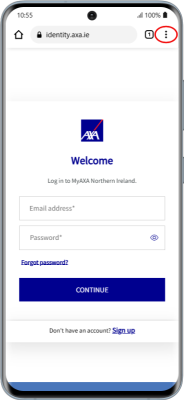
    Image of phone indicating the 3 dots in the corner of the screen

    Step 2: MyAXA will now appear on your mobile device’s home screen

    Step 3: Tap the MyAXA icon to login and you’re all set to go

    Why save MyAXA to your home screen?

    • Instant access to your policies
    • Easily view and download your documents
    • Change your car or add a driver
    • Make a payment or edit your details
    • Access your AXA Plus digital card, to avail of our exclusive offers in-store